How to Install Stardew Valley on an Android Phone
Stardew Valley is one of the most popular farming simulation games available on Android. It lets you build your own farm, grow crops, raise animals, fish, mine for valuable resources, and become part of a friendly village community. Whether you’re playing for the first time or returning after a break, installing the game on your Android phone is a quick and simple process.
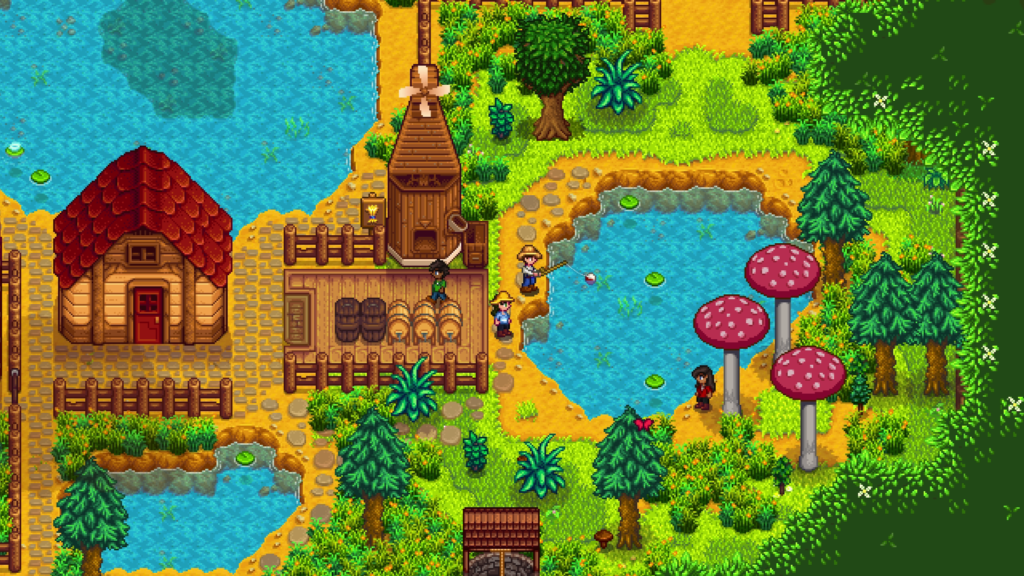
In this guide, you’ll learn exactly how to install Stardew Valley on Android, what your phone needs before installation, how to fix common installation issues, and a few tips to enjoy smooth gameplay.
Before You Install Stardew Valley
Before downloading the game, make sure your Android device meets a few basic requirements.
You should have:
- A compatible Android smartphone or tablet
- A stable internet connection
- Enough free storage space
- A Google Play account if downloading from the Play Store
- Android updated to a supported version
Checking these requirements first helps prevent installation errors later.
Method 1: Install Stardew Valley from the Google Play Store
The safest and easiest way to install Stardew Valley is through the Google Play Store.
Step 1: Open Google Play Store
Unlock your Android phone and open the Google Play Store.
Step 2: Search for Stardew Valley
Tap the search bar and type:
Stardew Valley
Make sure you choose the official version developed by ConcernedApe.
Step 3: Purchase the Game
Stardew Valley is a premium game, so you’ll need to purchase it before downloading.
Complete the payment using your preferred payment method.
Step 4: Download the Game
After purchasing, tap the Install button.
The Play Store will automatically download and install the game on your device.
The download time depends on your internet speed.
Step 5: Open the Game
Once installation finishes, tap Open.
The game will launch, and you’ll be ready to begin your farming adventure.
Method 2: Install Using an APK File
Some users may already own the APK file or need to reinstall the game manually.
Before installing, ensure the APK comes from a trusted and legal source.
Step 1: Download the APK
First, download the Stardew Valley APK for Android latest version v1.6.15.0 that is compatible with your Android device. Using the latest version gives you access to the newest features, performance improvements, bug fixes, and the best overall gameplay experience.
Before starting the installation, make sure you download the APK from a trusted and reliable source. Avoid modified or unofficial versions, as they may contain malware, security risks, or cause installation and gameplay problems.
Step 2: Allow Unknown App Installation
If prompted, Android may ask permission to install apps outside the Play Store.
To enable this:
- Open Settings
- Go to Security or Privacy
- Allow installation from your browser or file manager
After installation, you can disable this permission again for better security.
Step 3: Locate the APK File
Open your Downloads folder or File Manager.
Find the Stardew Valley APK.
Step 4: Install the APK
Tap the APK file.
Select Install.
Wait for Android to finish installing the game.
Step 5: Launch the Game
Once installed, tap Open or launch Stardew Valley from your app drawer.
How to Start Playing
When you launch Stardew Valley for the first time, you’ll create your character and choose a farm layout.
You’ll be able to:
- Customize your character
- Name your farm
- Select your favorite pet
- Pick a farm map
- Start growing crops
- Explore the town
- Meet villagers
- Complete quests
- Upgrade your tools
Take your time exploring because Stardew Valley is designed to be enjoyed at your own pace.
Tips for Smooth Gameplay
For the best gaming experience:
- Close unnecessary apps before playing.
- Keep enough free storage available.
- Update the game regularly.
- Keep your Android system updated.
- Play with a stable battery level or while charging.
- Save your progress regularly.
These simple habits help reduce crashes and improve performance.
Common Installation Problems and Solutions
Installation Won’t Start
Possible causes include:
- Not enough storage
- Poor internet connection
- Temporary Play Store issue
Solution:
- Free some storage space.
- Restart your phone.
- Clear the Play Store cache.
- Try downloading again.
APK Won’t Install
This usually happens because:
- Unknown app installation is disabled.
- The APK is incomplete.
- The APK version isn’t compatible with your Android device.
Solution:
- Enable installation from unknown sources.
- Download the APK again.
- Use the correct version for your phone.
App Keeps Crashing
If Stardew Valley closes immediately after opening:
Try these fixes:
- Restart your device.
- Update Android.
- Update the game.
- Clear the app cache.
- Reinstall the game if necessary.
Low Performance or Lag
If gameplay feels slow:
- Reduce background apps.
- Restart your phone.
- Free storage space.
- Use a newer Android device if your current phone has limited hardware.
How to Update Stardew Valley
Keeping the game updated gives you:
- New content
- Bug fixes
- Better performance
- Improved stability
- Compatibility with newer Android versions
If you installed from Google Play:
- Open Google Play Store.
- Search for Stardew Valley.
- Tap Update if available.
If you installed via APK:
Download the latest compatible version from the same trusted source and install it over your existing installation if supported.
Is Stardew Valley Safe to Install?
Yes, Stardew Valley is completely safe when downloaded from official or trusted sources.
To stay secure:
- Download from the Google Play Store whenever possible.
- Avoid modified APKs.
- Avoid websites that bundle extra installers.
- Keep your antivirus software updated.
- Don’t grant unnecessary permissions.
These precautions help protect both your device and your personal data.
Frequently Asked Questions
Is Stardew Valley free on Android?
No. Stardew Valley is a premium game on Android and requires a one-time purchase through the Google Play Store.
Can I play Stardew Valley offline?
Yes. After installation, you can enjoy most of the game without an internet connection.
Does the game support touch controls?
Yes. Stardew Valley is fully optimized for touchscreen controls on Android devices.
Will my game progress be saved?
Yes. The game automatically saves your progress, allowing you to continue your farming adventure later.
Can I transfer my save to another device?
Depending on your setup, save files can often be backed up or transferred manually. Always create a backup before moving save data.
Final Thoughts
Installing Stardew Valley on an Android phone is a straightforward process. The easiest and safest method is downloading it from the Google Play Store, where updates and security are handled automatically. If you’re using an APK File, make sure it’s the correct version from a trusted source and follow the installation steps carefully.
Once installed, you’ll be able to build your dream farm, raise animals, explore caves, complete quests, make friends with villagers, and enjoy one of the most relaxing farming games available on mobile. Keeping the game updated and following basic maintenance tips will ensure smooth performance and an enjoyable experience every time you play.